Accessing SmartyFile
Users who are registered with SmartyGrants will already have a login to SmartyFile. Once logged into SmartyFile, any user can request to join an existing organisation or create a new organisation profile.
Wanting to use SmartyFile in a personal capacity (as an individual) only? Check out our guide here instead.
Table of contents
Register or login
Users who are registered with SmartyGrants will already have a login. If this is you, you can jump straight to the login steps below. Otherwise, if you need to register, skip ahead to the next step (Register).
Login
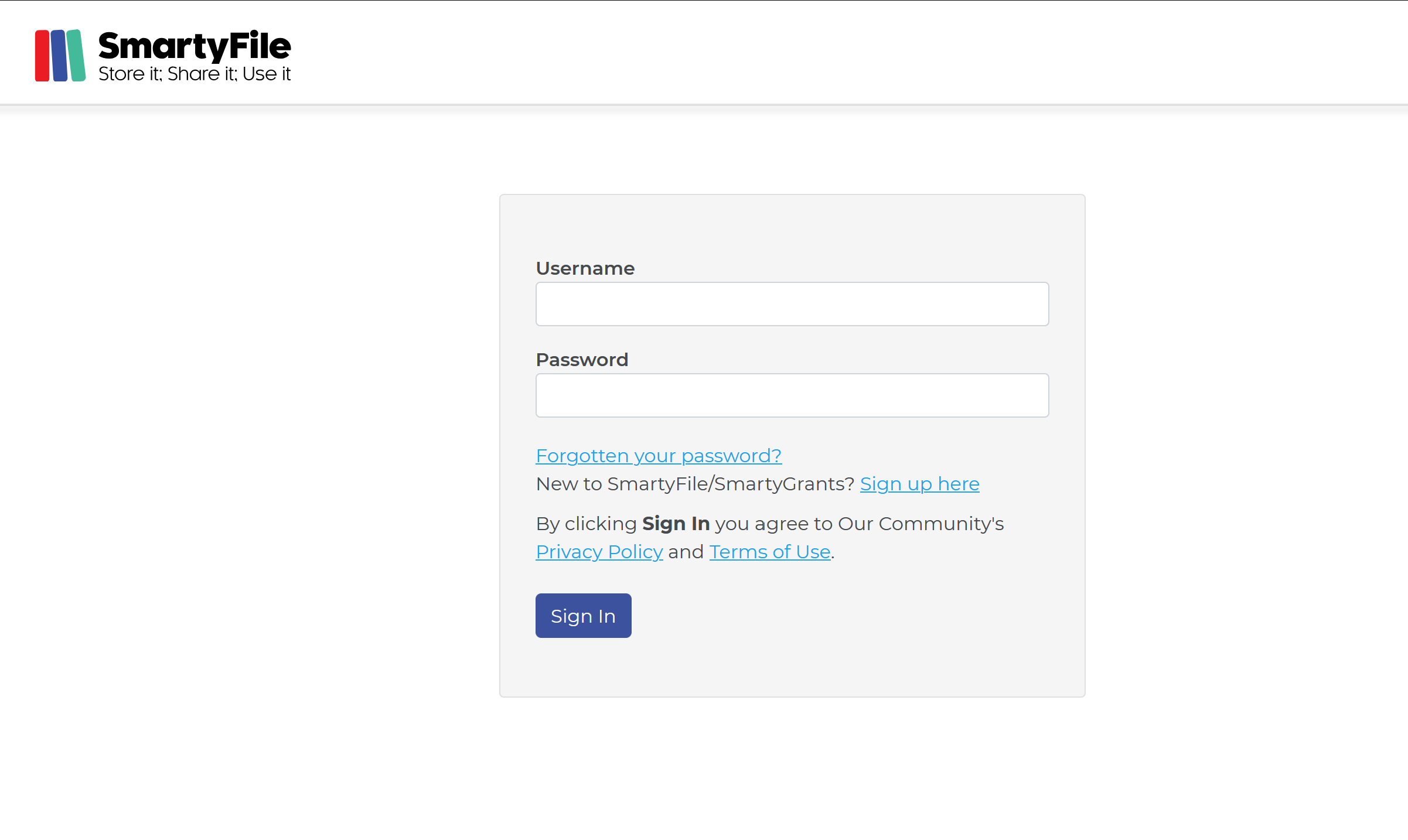
Head to app.smartyfile.co.uk.
Enter your registered SmartyGrants email address and password into the Username and Password fields respectively.
Select Sign In.
Note: You must have a SmartyGrants account to log in to SmartyFile. If you do not have an existing SmartyGrants account, you can create one using the guidance found in the next step (Register).
Note: If you or your organisation’s Administrator has enabled Multi-Factor Authentication, you will be required to use MFA to log in. If this is the case, see here for help.
Register
Enter your details, then select Register.
Once you have entered your details and selected the Register button, SmartyGrants will send an activation email to the email address you entered. To activate the account, navigate to that email account’s inbox, open the activation email, and select the activation link.
Important: An activation email may take up to 15 minutes to arrive. If you don’t see the email in your inbox, check your junk or spam folder.
Once your account is activated, you can go to https://app.smartyfile.co.uk/ and log in using the steps here.
Forgotten your password?
If you’ve forgotten your password, you will need to reset it by creating a new one.
Head to app.smartyfile.co.uk.
Select Forgotten your password?.
Enter your registered email address and select Reset Password.
An automatic email will be sent to that email address if the email address belongs to an existing SmartyGrants account. In that email, you will receive steps on how to reset your password. Follow the instructions and select the link provided. This will take you to a page where you can create your new password.
Important: A password reset email may take up to 15 minutes to arrive. If you don’t see the email in your inbox, check your junk or spam folder.
Enter your new password twice, then select the Submit button.
If you are stuck on any of the steps above, or still need assistance with signing into SmartyFile, you can also review our advice on our SmartyGrants FAQ page here.
Multi-Factor Authentication
If you or your administrator has enforced the use of MFA (Multi-Factor Authentication), you will be required to use this every time you log in to SmartyFile or SmartyGrants.
Set up MFA
If you have not yet set up Multi-Factor Authentication (MFA), the next time you log in you will be presented with the following screen and steps:
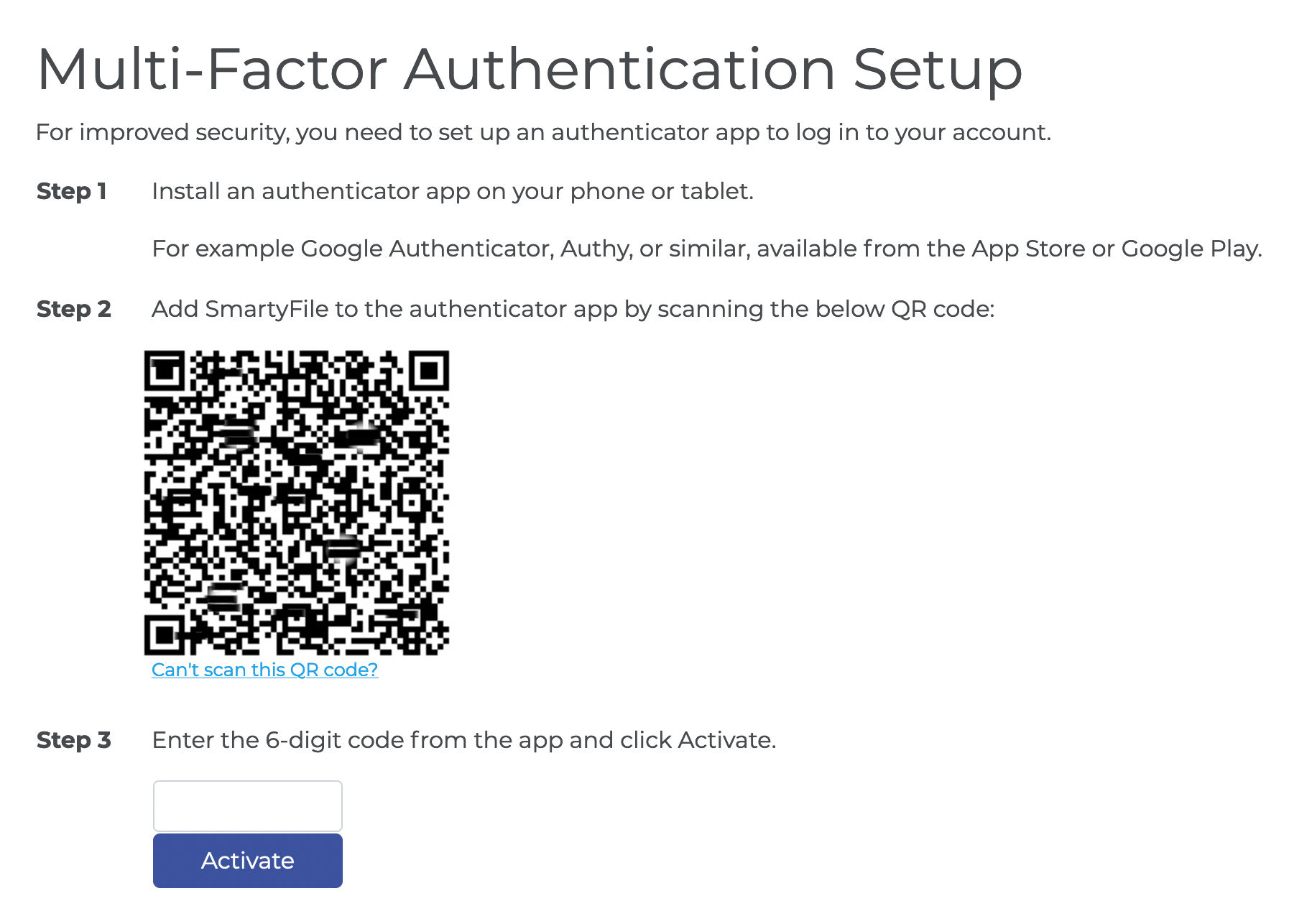
Step 1: Install an authenticator app on your phone, tablet or computer.
Tip: Any Authenticator app can be used (i.e. Google Authenticator, Authy, Microsoft Authenticator). The most common authentication apps can be found on the Apple Store or Google Play Store.
Step 2: Add SmartyFile to the authenticator app by scanning the QR code shown on screen.
Step 3: The six-digit code generated by the authenticator app must then be entered into the SmartyFile screen. Then, select Activate.
Note: You will often have a time limit to provide the code from your authenticator app. If this time limit expires, the code will also expire, so you will need to obtain and enter the new code.
Authenticate
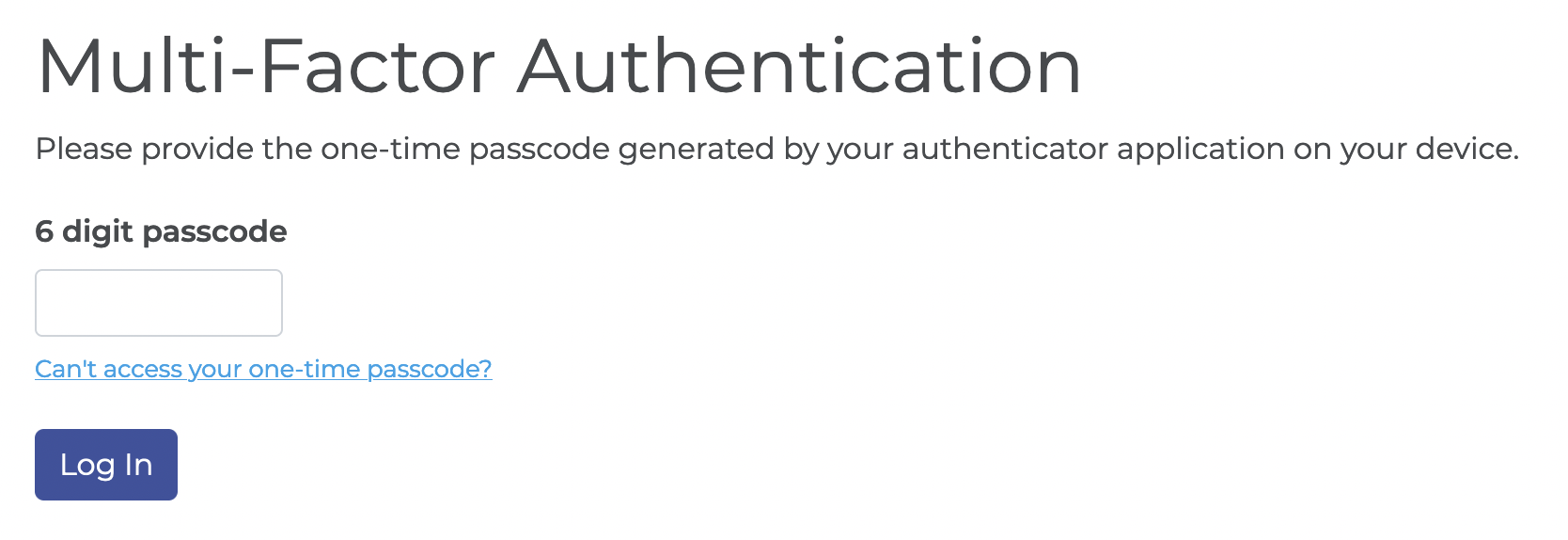
After using your email address and password to log in to SmartyFile / SmartyGrants, the following screen will show on every login. Provide the code from your authenticator app into the 6-digit passcode field, then select Log In.
Note: You will often have a time limit to provide the code from your authenticator app. If this time limit expires, the code will also expire, and you will need to obtain and enter the newly generated code.
Help with MFA
If you are having issues with your existing authentication method, you may need to reset your MFA device. This will allow you to once again set up MFA.
Only an Administrator of the SmartyFile organisation can do this for you. Please contact your Administrator to request a device reset. Instructions for your Administrator can be found here.
If your Administrator is unavailable (or you are not a part of a SmartyFile organisation), you can contact the SmartyFile support team for help.
Navigate: Back to top | My Profile | My Organisations | My Submissions
Organisation profile
All users have access to the My Organisations page, which is where they can see a list of SmartyFile organisation profiles they have joined or created.
To access an organisation profile, once logged in:
If you have already joined a SmartyFile organisation
Select My Organisations, then select the name of your organisation.
If you haven’t joined an existing organisation
See Join an existing organisation profile below.
You can also use this process to search if an organisation profile already exists.
If your organisation hasn’t yet created a SmartyFile profile
Create your organisation profile
Once logged in, you will have the opportunity to create an organisation.
Important: Before creating a new organisation, double-check that a profile has not yet been created. Organisations cannot be merged together. Multiple profiles for the same organisation should only be created if necessary, as one organisation profile cannot see any submissions from another profile.
Go to My Organisations.
Select New Organisation.
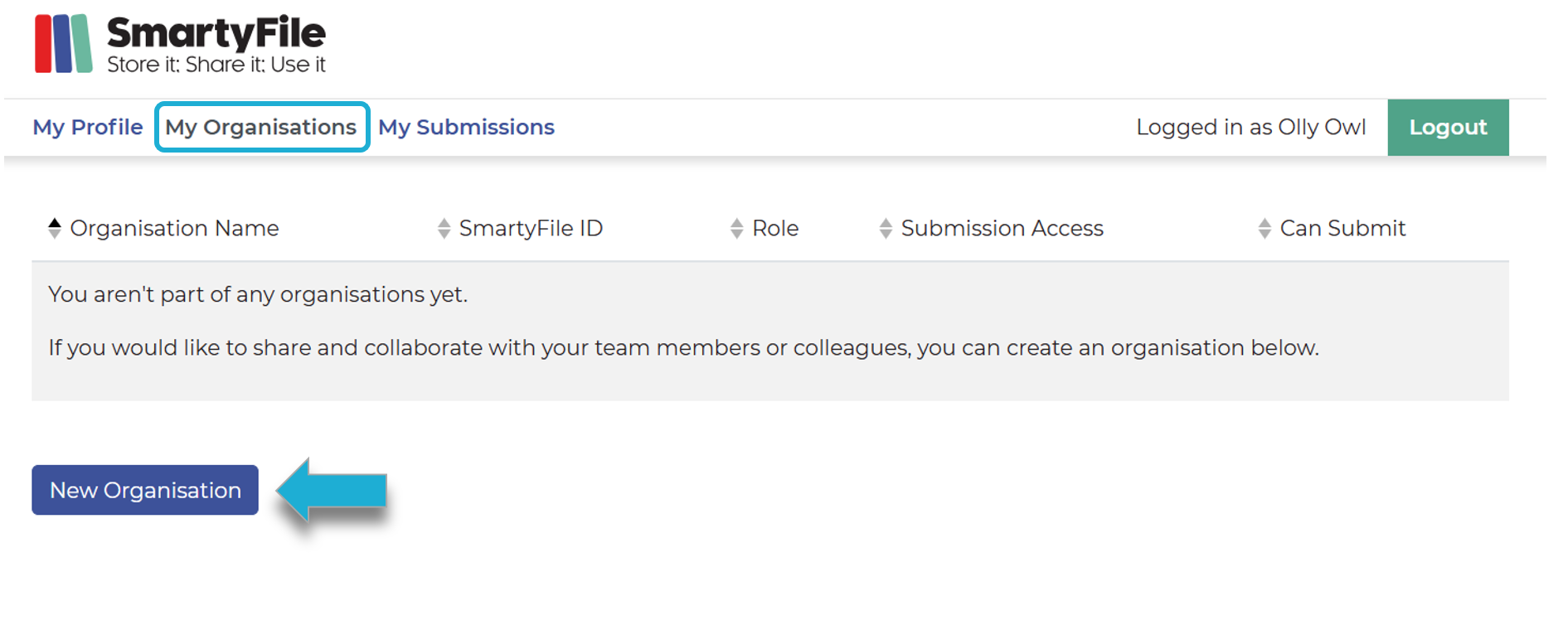
Type in your organisation’s name and select Lookup. Alternatively, if you have been given a SmartyFile ID for an existing organisation profile, you can type this in instead.

You will have the option to request to join one of the existing organisations or create a new organisation profile. To join an existing organisation, see the steps here instead.
Type the name of the organisation, and then select Create.
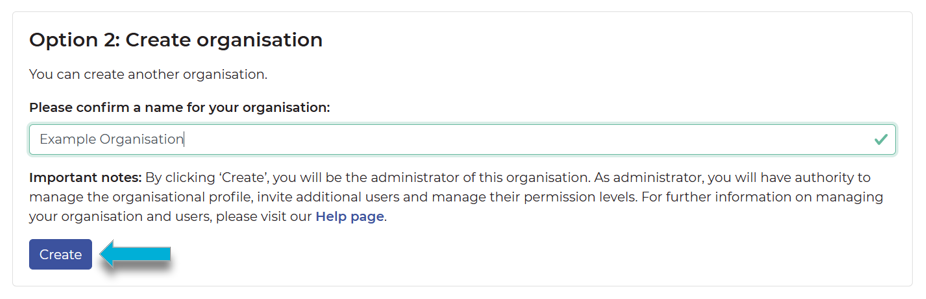
Important: Organisation management is key. Please see the below information before proceeding to the next step.
By creating an organisation profile, you will become the administrator of this organisation. As administrator, you will have the authority to manage the organisation's profile, invite additional users, manage their permission levels, and add additional administrators.
It is strongly recommended that you assign an additional administrator as a back-up in the case that you leave the organisation or are unavailable. Steps on how to add another user can be found here.
Organisations cannot be merged together. Multiple profiles for the same organisation should only be created if necessary, as one organisation profile cannot see any submissions from another profile. Relevant user permissions within an organisation can be used to manage which submissions within an organisation can be accessed by whom.
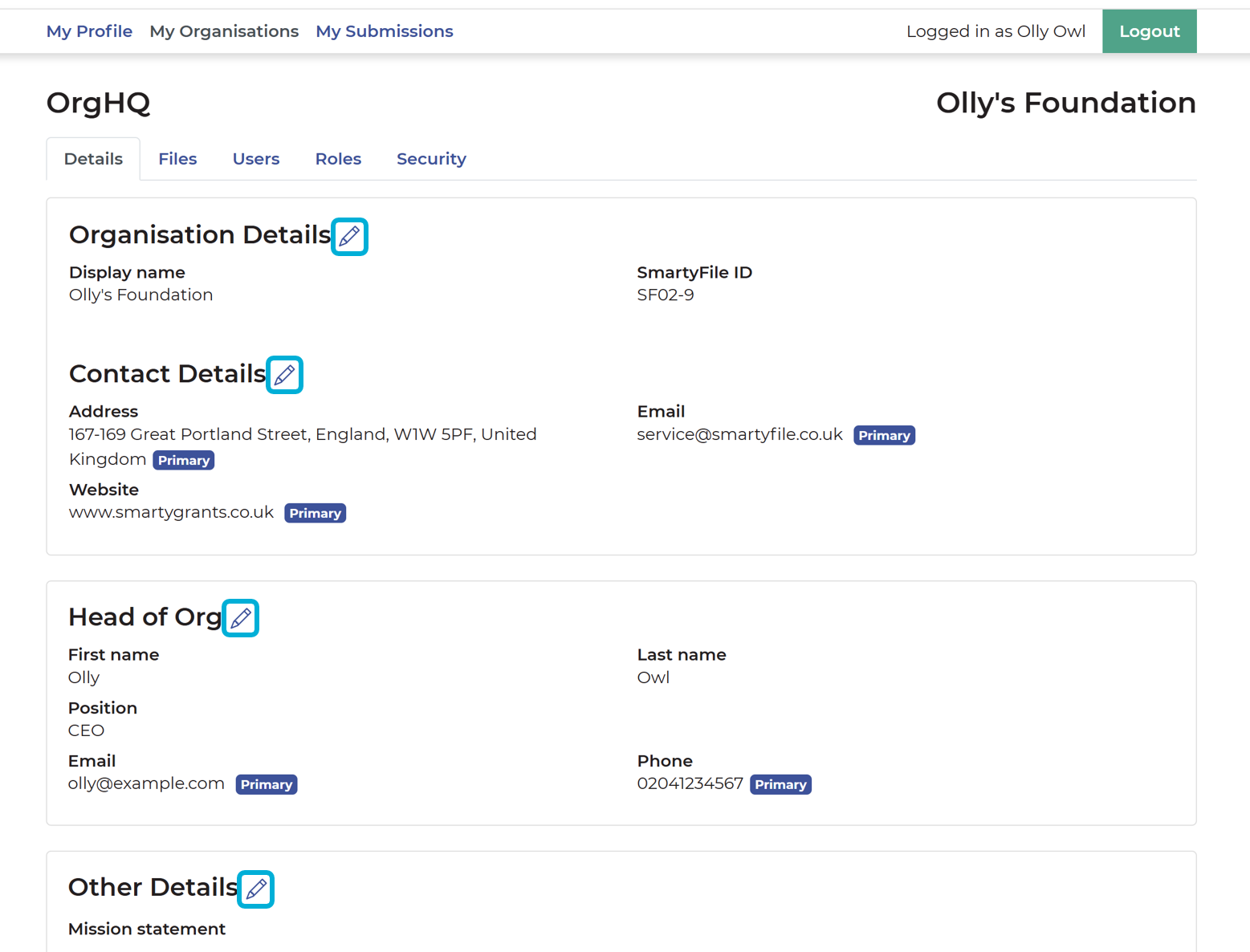
Once you’ve created a new organisation, you can fill out organisation details from the OrgHQ page. These details can be used to auto-fill into SmartyGrants forms by you or your team members when completing submissions. Select the pencil icon to edit or add details:
Organisation Details
Contact Details
Head of Org
Mission statement
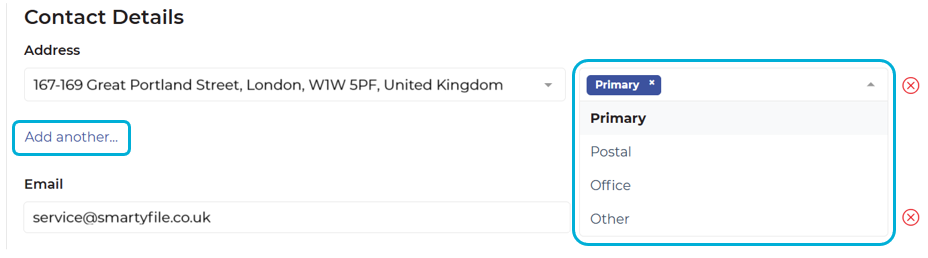
You can tag any set of contact details as Primary, Postal, Office or Other, depending on their purpose.
Select Add another to add additional contact details.
Navigate: Back to top | My Profile | My Organisations | My Submissions
Join an existing organisation profile
Once logged in, you will have the opportunity to join an existing organisation.
Go to My Organisations.
Select New Organisation.
Type in your organisation’s name and select Lookup. Alternatively, if you have been given a SmartyFile ID for an existing organisation profile, you can type that instead.
If any organisations exist for the organisation name or SmartyFile ID that you’ve searched, they will appear under Option 1: Join an existing organisation. If none exist, you can consider creating an organisation instead.
To join an organisation, select the blue right-facing arrow next to the name of the organisation. Type in a message for the organisation’s current administrators, and then select Join.

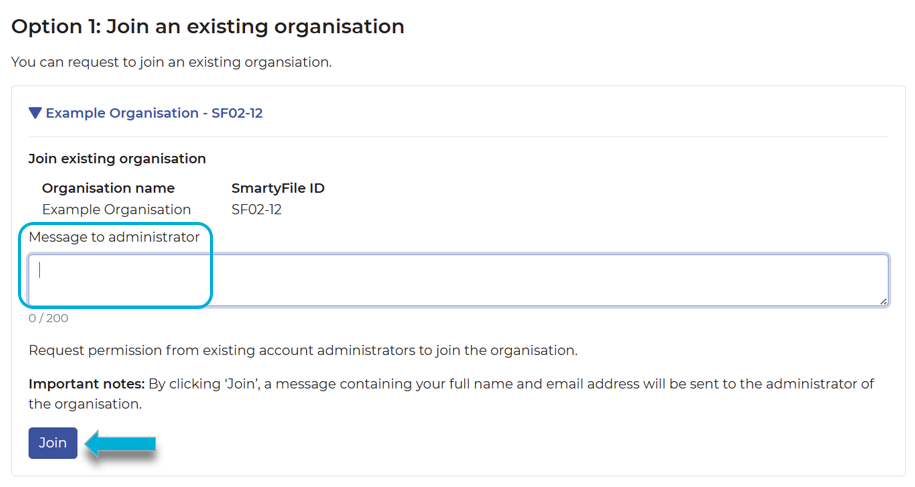
Once an administrator approves your join request, you will be added to the organisation profile.
Navigate: Back to top | My Profile | My Organisations | My Submissions