My Submissions
From My Submissions, you can search, sort, archive, delete drafts, and access forms you have been asked to complete as part of a submission.
Depending on your user permissions, you will either only see submissions that you own, or you’ll additionally see submissions that have been assigned to your SmartyFile organisation.
Table of contents
View submissions and forms
To access your submissions (and any subsequent forms), select My Submissions. From there, select either the Submission ID number or the arrow on the right-hand side of the submission to view all associated forms.
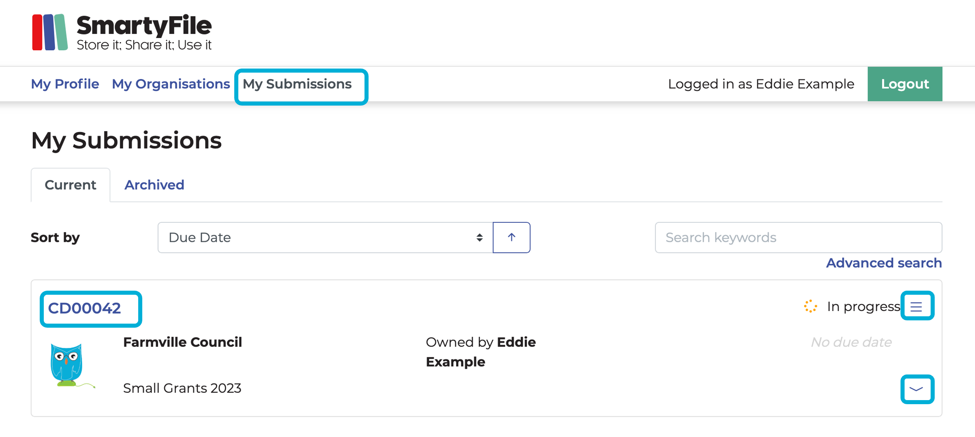
If you’re an administrator of a SmartyFile organisation, you’ll also be able to see any submission that has been assigned to the SmartyFile organisation, regardless of whether you are the owner or not.
Search
Note: What submissions you can search and find depend on your user permissions within a SmartyFile organisation.
From the My Submissions page, you can search through your submissions. You can type keywords or a query into the search bar or use the Advanced search function to search by a specific field type (i.e. by round, due date, and more). Running a query allows you to search for partial words or wildcards in the search results. See Search functions for more information.
If you’re an administrator of a SmartyFile organisation, you’ll also be able to search and find other submissions that are both assigned to the organisation and belong to other members of the organisation.

Sort by
Note: What submissions you can see and access depends on your user permissions within a SmartyFile organisation.
On the My Submissions page, the default sort order of submissions is:
Incomplete (overdue submissions): sorted oldest to newest.
In progress with due date: sorted oldest to newest.
In progress without due date.
Submitted.
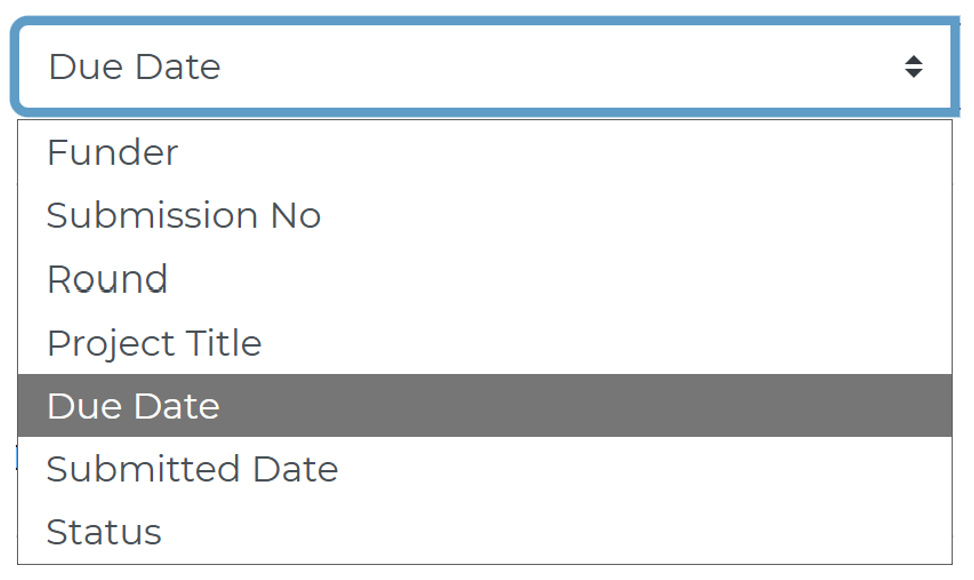
You have the ability to toggle your sort order and sort your submissions by:
Funder.
Submission No (Application ID).
Round.
Project Title.
Due Date.
Submitted Date.
Status.
Navigate: Back to top | Accessing SmartyFile | My Profile | My Organisations
Delete or archive submissions
Delete a draft
Unsubmitted submissions with a status of In progress can be deleted. To do this:
Select My Submissions and locate the submission you wish to delete.
Select the hamburger (three lines) menu icon next to the status, and select Delete.
Confirming deletion means the submission will be PERMANENTLY deleted and unable to be retrieved. If you are sure, select Delete to confirm.

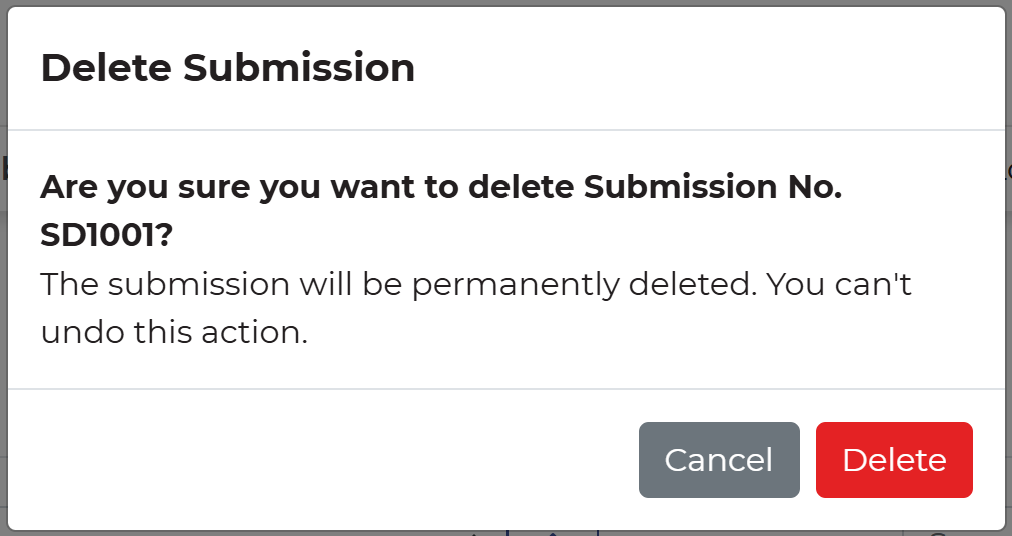
Important: Submissions that have been submitted cannot be deleted. If you’d like to remove or withdraw your submission for a programme, please contact the funder directly.
Archive or unarchive
On the My Submissions page, you can archive a submission that you no longer want to see on the default Current tab. You may want to do this for past submissions that are completed and have no further action required. Archived submissions can always be reactivated ('unarchived') if needed.
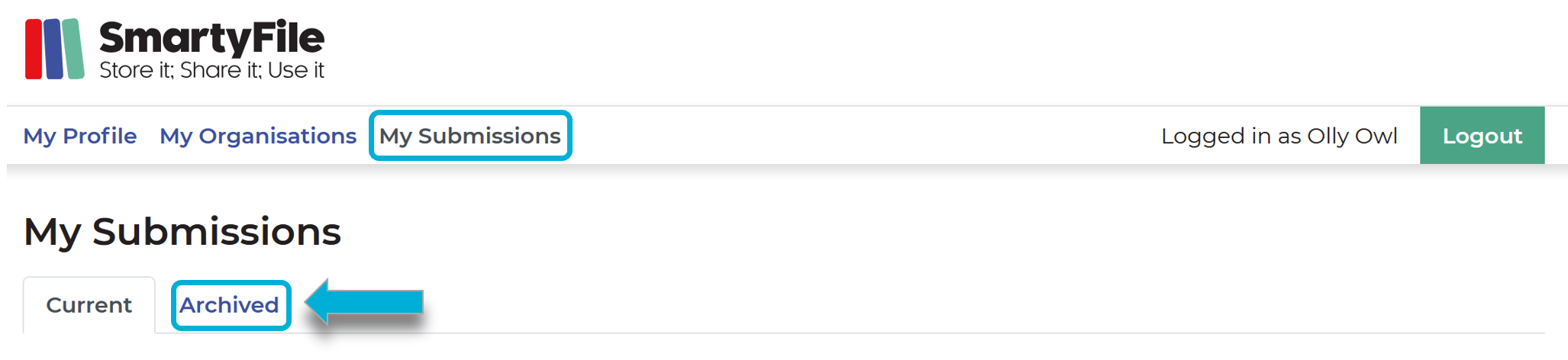
To archive a submission:
Select My Submissions and locate the submission you wish to archive.
Select the hamburger (three lines) icon, then select Archive.

To unarchive a submission:
Select My Submissions.
Select the Archived tab.
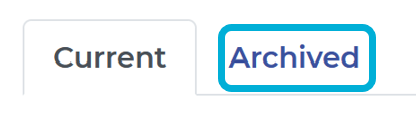
Locate the submission you wish to unarchive.
Select the hamburger (three lines) icon next to the status, then select Unarchive.

Navigate: Back to top | Accessing SmartyFile | My Profile | My Organisations
Manage submissions
On SmartyFile, depending on your user permissions, you can add or remove submissions to the organisation, change the owner of a submission, or share your submission with others in the organisation.
With some exceptions, most of these actions can only be performed by an Administrator.
Assign an existing submission to an organisation
In order for members of a SmartyFile organisation to see and collaborate on existing submissions, the submissions must first be assigned to a SmartyFile organisation.
Users who can assign an existing submission to a SmartyFile organisation include:
Administrators
The existing submission owner only if they have the Author user role, and Create / Start Items permission enabled
A user with a Custom user role only if that custom role has the Create / Start Items permission enabled.
Note: See About permissions for more details on user permissions.
To assign a submission to the organisation:
Select My Submissions and locate the submission you wish to assign.
Then, select the hamburger (three lines) icon, and select Assign to org.
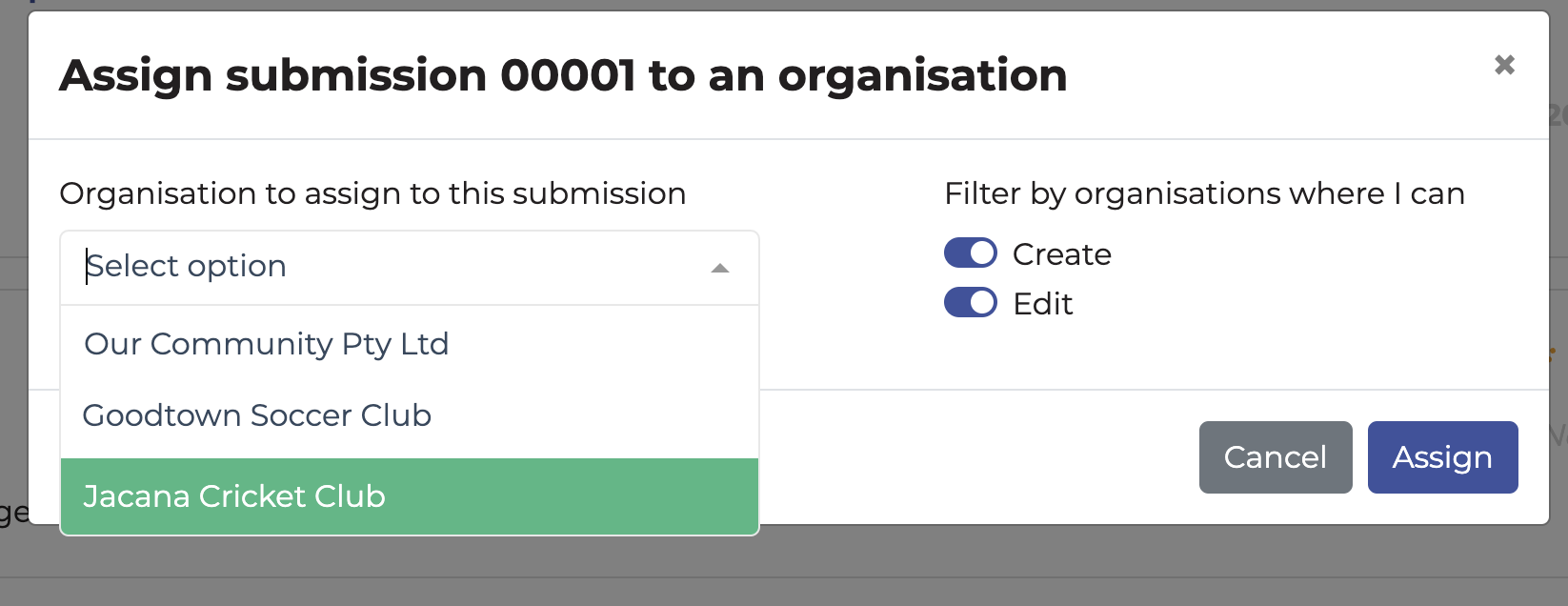
Select the organisation to assign to and select Assign to confirm.

Remove a submission from an organisation
Note: Only Administrators can remove a submission from the organisation.
Select My Submissions.
From the list of submissions, locate the submission you wish to remove from the organisation.
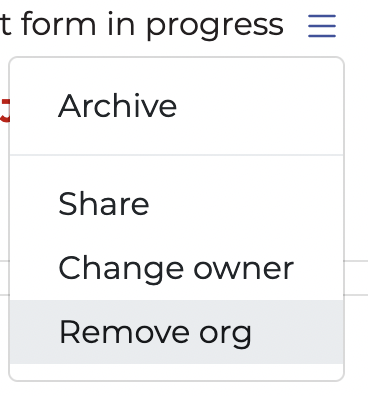
Select the hamburger (three lines) icon, and select Remove org.
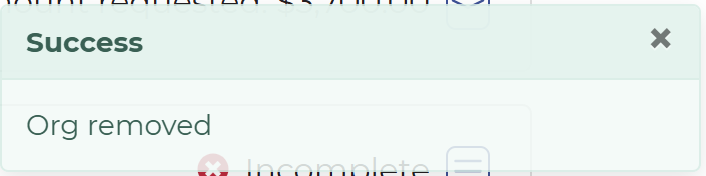
A message titled Success will appear, confirming the submission has been removed from the org.
Once a submission has been removed, the Owner becomes the individual user currently in control of that submission.
Share a submission
Note: Only Administrators, submission owners, and Authors with access to the submission can share a submission.
Before you share a submission, please note the following:
The submission must be assigned to a SmartyFile organisation.
You cannot share submissions that are only personally owned.
The user you’re sharing with must be a member of the SmartyFile organisation.
You cannot share a submission with users outside of your org profile.
The user you’re sharing with must have permissions to see submissions.
This is controlled via the View Items permission.
If a user does not appear under Select user/s to share this submission with, then they do not have the right permissions. If required, an Administrator can update that user’s permissions.
To share a submission:
Select My Submissions.
Locate the submission you wish to share.
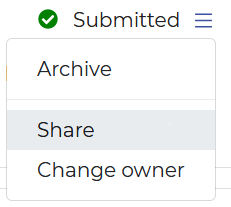
Select the hamburger (three lines) icon and then select Share. This will display a list of users that you can share the submission with.
You can enter a message for those users you are sharing with, as well as set an expiration date for the share. If Share until date is left blank, submissions will be shared indefinitely or until sharing permissions are removed.
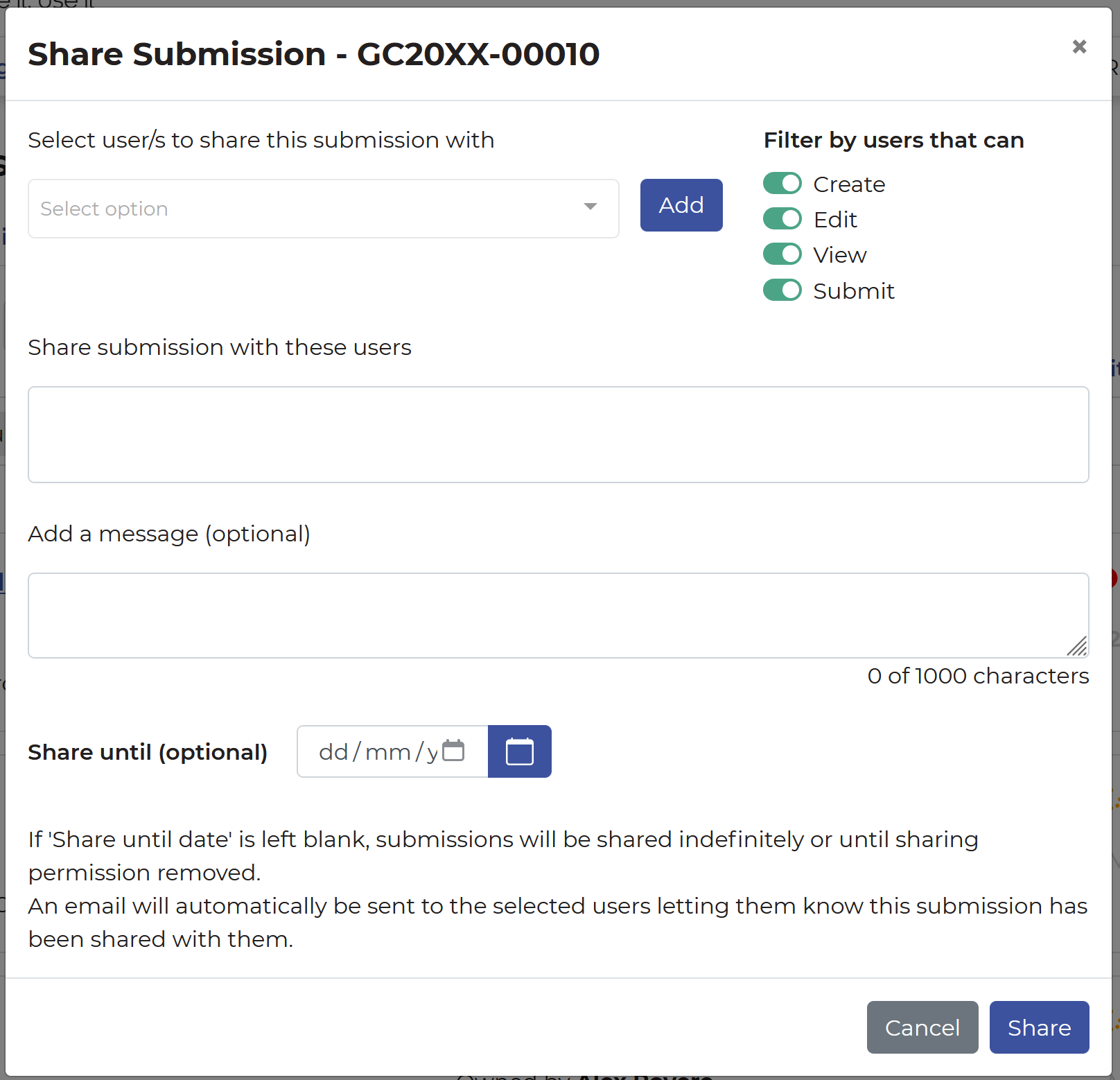
An email will automatically be sent to the selected users letting them know this submission has been shared with them.
Change owner
You must be a part of a SmartyFile organisation to change the owner/user of a submission.
If you are not part of a SmartyFile organisation, you can either:
Contact the funder directly to request an update.
To change the owner of a submission:
Select My Submissions and locate the submission you wish to change the owner for.
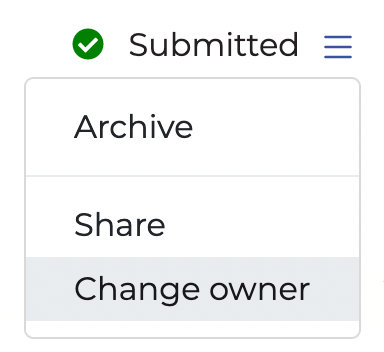
Select the hamburger (three lines) menu icon, then select Change owner. This will display a list of users in your SmartyFile Organisation that you can assign the submission to.
Who has access to change owner?
Administrators:
Can change the owner on all submissions that belong to their organisation.
The current submission owner:
Can change the owner for their submission only.
Who can become an owner?
Only users with an Administrator or Author role within the organisation can become the new owner. You can read more about user roles here.
Navigate: Back to top | Accessing SmartyFile | My Profile | My Organisations