Search functions
You can search for specific applications to a funder on your My Submissions page.
This article covers more about search functionality.
Tip: If you are using SmartyFile, you can search across all applications you own across all funders at once. In addition, if you have the right user permissions, you can also search for applications that have been shared with you or belong to your organisation.

Table of contents
Simple search
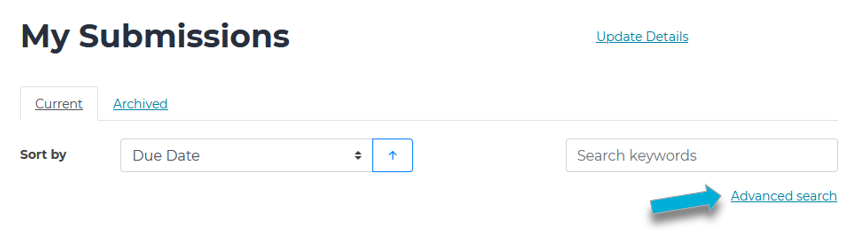
The simple search function can be found at the top of the My Submissions page.
To search across submissions, enter your words into the search field.

Any submissions that contain the word(s) you searched for will appear in the results, as shown below.
Note that if you are looking to do a partial search (see Info below), you will need to perform a search query.
Info: As an example, you may try to search for any applications that are owned by one of your team members named Jenny. You searched using Jen, but received no results. If you use Jenny instead, results appear. If you wanted to be able to just use Jen to search applications, you would need to perform a wildcard search. More information on this can be found below.
Advanced search
Selecting Advanced search allow you to see and use more search options. This can be helpful in narrowing down search results.
Advanced search on the regular My Submissions page
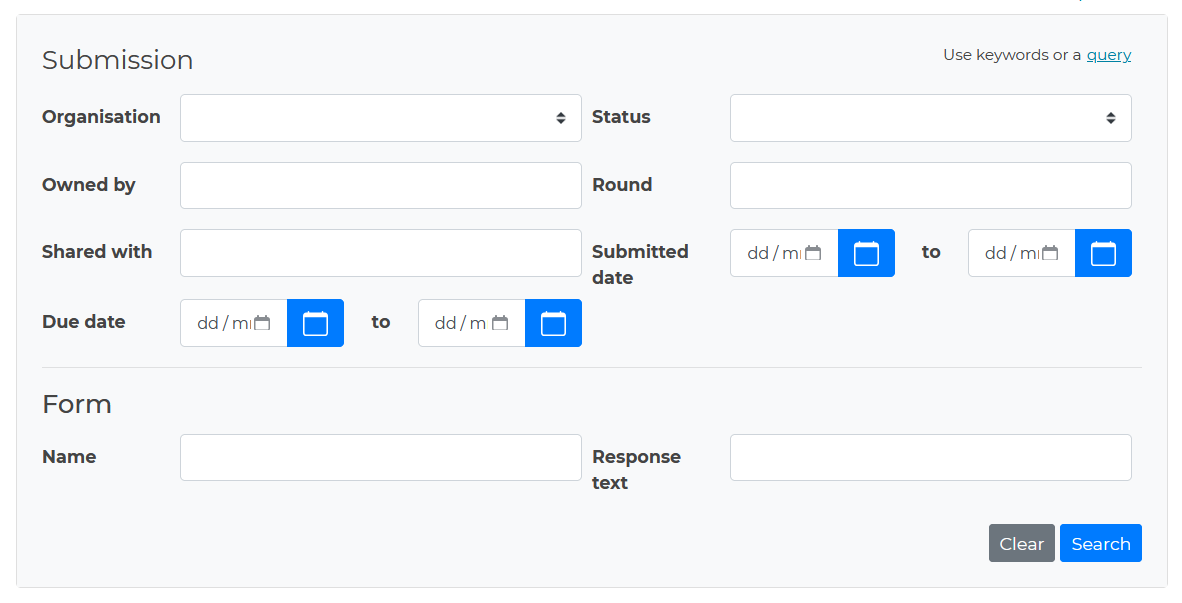
Organisation: The organisation name the application(s) were lodged under.
Status: Status of form(s) within an application. This can be Not started, In progress or Completed.
Owned by: Name of the specific user who own the application(s).
Round: Name of the funding round for the application(s).
Shared with: Name of a specific user who has had the application(s) shared with them. The application must have been shared using the Share feature in SmartyFile - see here for more information.
Submitted date: Date the application(s) were submitted. This can be a range.
Due date: Date the application(s) are/were due by. This can be a range.
Form name: Name of the form(s) present in application(s).
Form response text: Specific text that can be found within form(s) present in application(s).
Advanced search on the SmartyFile My Submissions page

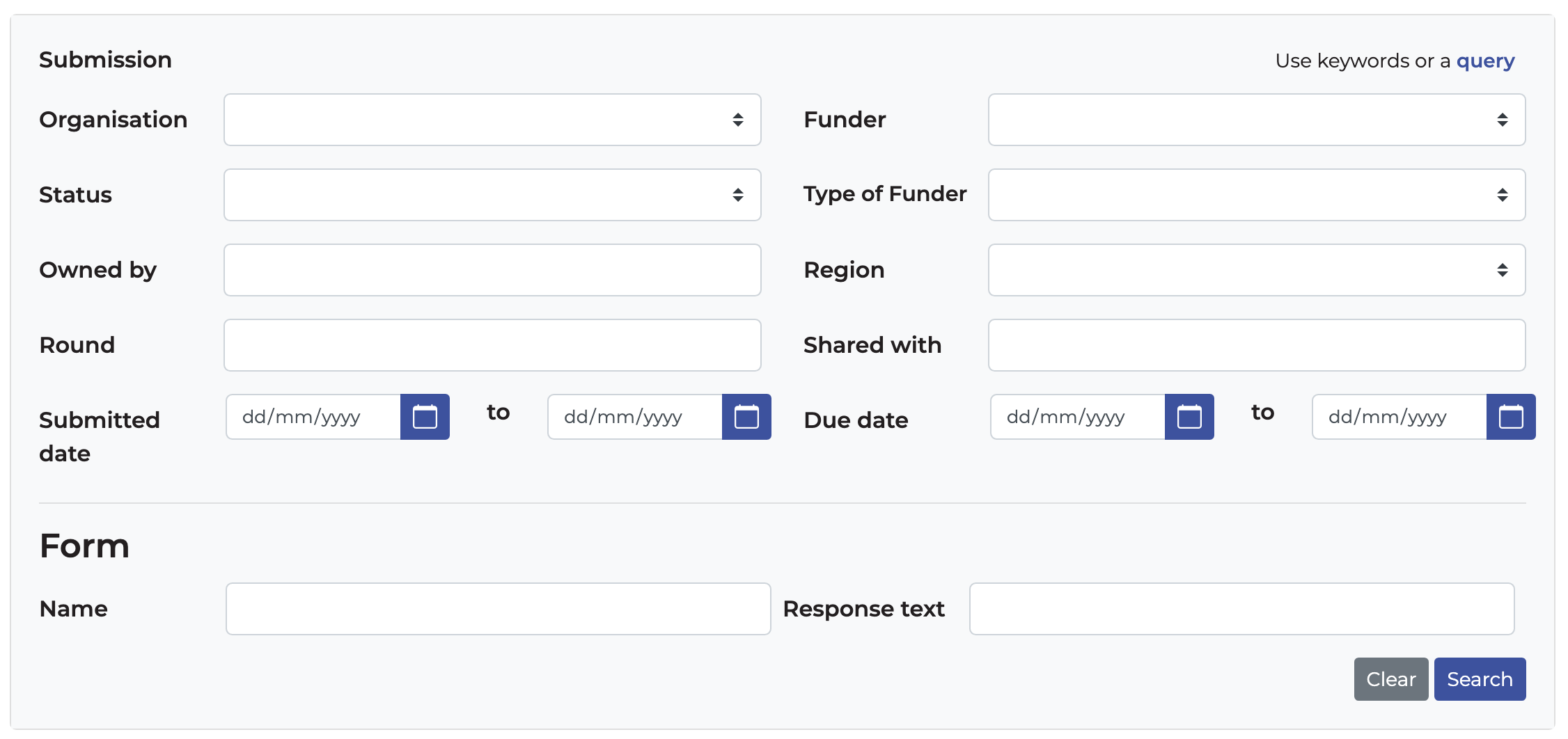
Submission organisation: The SmartyFile organisation(s) that have had the application(s) assigned to them. The application must have been assigned to the organisation (submitting a form under the name of the SmartyFile organisation does not count) - see here for more information.
Funder: Name of the funder running the round.
Status: Status of form(s) within an application. This can be Not started, In progress or Completed.
Type of Funder: The funder’s organisation type.
Owned by: Name of a specific user within your SmartyFile organisation(s) who own the application(s).
Region: Location(s) where the funder provides their funding to.
Round: Name of the funding round.
Shared with: Name of a specific user within your SmartyFile organisation(s) who have had the application(s) shared with. The application must have been shared using the Share feature in SmartyFile - see here for more information.
Submitted date: Date the application(s) were submitted. This can be a range.
Due date: Date the application(s) are/were due by. This can be a range.
Form name: Name of the form(s) present in application(s).
Form response text: Specific text that can be found within form(s) present in application(s).
Types of search queries
You can use a query to search and show results for an exact match, partial match with wildcards, or even eliminate results based on other search parameters.
For those interested in the technical specifics of this function, SmartyFile uses the Lucene Search system.
Keywords (results must include)
Keywords can be used in a simple or advanced search. To search for an exact match to a character, word or number, you can do this by using double quotation marks (“ ”) on either side of the required result.
For example, to search for all applications that contain community, you can use the search:
“community”
This can also be done for multiple words (a phrase). For example, if you wanted to search for all applications that contain the phrase community events, you can use the search:
“community events”
Note: When putting quotation marks around multiple words, the search will only return results that contain the exact phrase in the exact order and spacing used. For example, “community events” would NOT return results for “community event funding” or “community sporting events”.
Wildcard Searches
Lucene supports single and multiple character wildcard searches within single terms (not within phrase queries).
To perform a single character wildcard search, use the ? symbol.
To perform a multiple character wildcard search, use the * symbol.
Single character wildcard search ( ? )
For example, to search for text or test, you can use the search below:
te?t
Multiple character wildcard search ( * )
For example, to search for test, tests and tester, you can use the search below:
test*
You can also use the wildcard searches in the middle of a term. In addition to finding results for Text and Test, the search below would also show results for Teapot, Tenant and Teleport:
te*t
Note: You cannot use a * or ? symbol as the first character of a search.
Boolean Operators
Boolean operators allow search queries to be combined. This means you can use more than one query to better refine your search results.
Lucene supports the following Boolean operators:
AND
+
OR
NOT
-
Note: Boolean operators must be capitalised. AND | OR | NOT are all Boolean operators, but attempting to use them in lowercase (and | or | not) would not work.
OR operator
You can use the OR operator to find results where either terms are present in the application.
For example, to search for applications that either include the phrase community events or just the word events, you can use either search queries below:
“community events” events
“community events” OR events
AND operator
You can use the AND operator to find results where both terms exist anywhere in the application.
For example, to search for applications that include community events and also youth events, you can use the search:
“community events” AND “youth events”
+ operator
The + operator requires that the term after the + symbol must exist somewhere in the result.
For example, to search for applications that must contain community, but may also contain events, you can use the search:
+community events
NOT operator
The NOT operator excludes results that contain the term after NOT.
For example, to search for applications that contain community but do not include events, you can use the search:
“community” NOT “events”
Note: The NOT operator cannot be used with just one term. For example, the following search will return no results: NOT “events”
- operator
The - operator prohibits applications that contain the term after the - symbol.
For example, to search for applications that contain community events but do not contain youth events, you can use the search:
“community events” - “youth events”
Info: For further technical information on Lucene search parameters, see Technical Lucene Parameters (external site).