Help for Members
Table of Contents
My Profile
Each user who has a SmartyFile account also has a personal My Profile section where they can keep their contact details up to date. This information can then be auto-filled into forms from funders who use SmartyGrants. Select the pencil icon to edit or add contact information under the My Profile tab. If you have completed your My Profile details, they will be available for pre-fill. When you next log into SmartyGrants or SmartyFile to start or continue a submission, as long as you’ve selected that you are applying on behalf of an individual, you will see those details available. Note that you can still manually update any field (i.e not use pre-fill) if you want to. 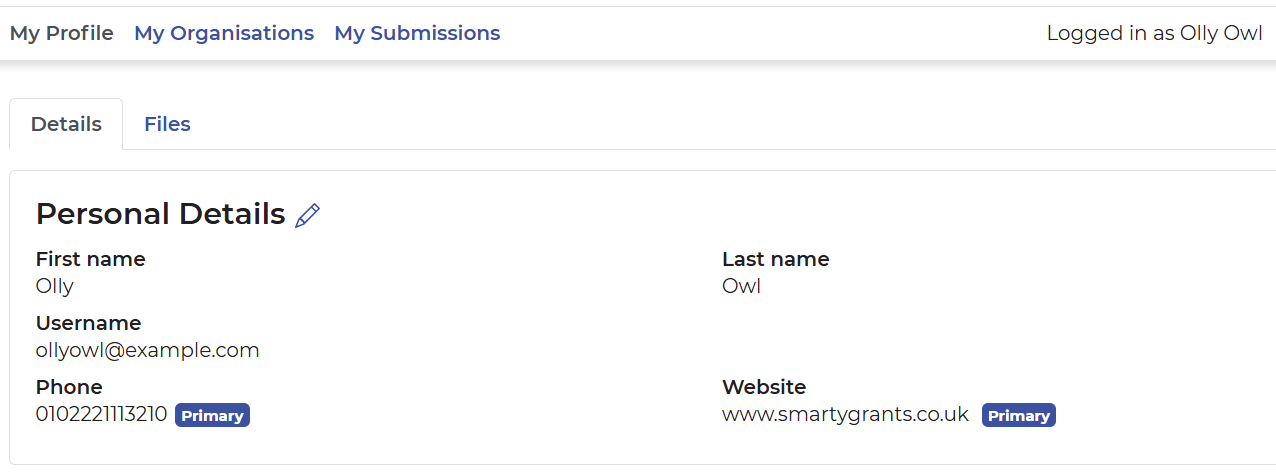
Pre-fill individual details
To learn more about the pre-fill function, see our technical documentation here.
File storage
Applicants with a SmartyFile profile will have the ability to upload and store files either via their individual My Profile or under any of their organisational profiles via the Files tab (if they have the right user permissions to do so). Stored files can then easily be accessed by applicants completing any attachment fields/questions in forms powered by SmartyGrants.
Users can include a document expiry date when storing files, and are notified as documents are approaching expiration.
The maximum individual file size that can be uploaded is 25MB and must be of a file type supported by SmartyGrants. For a full list of file types supported by SmartyGrants, please see here.
Individuals and organisations will have a maximum of 2GB of storage available for all stored files. If this storage limit is reached, users will be able to delete any files that are no longer required or whose due date has expired.
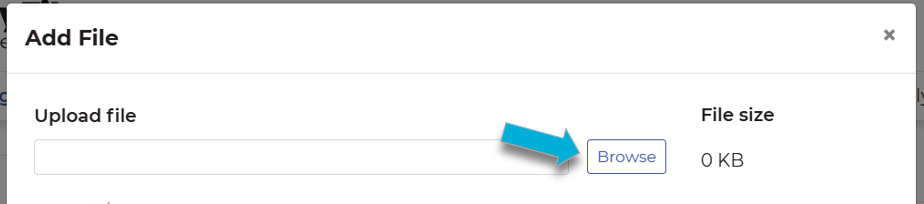
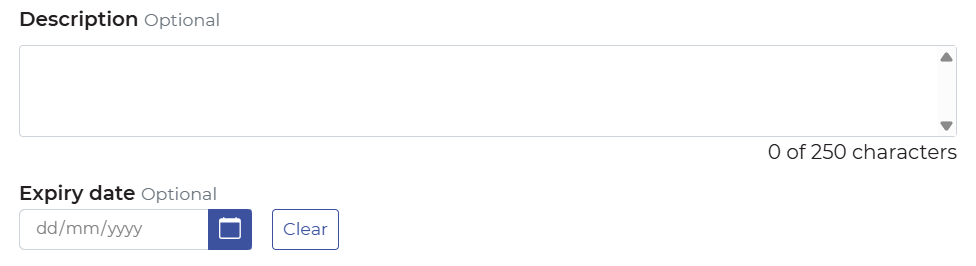
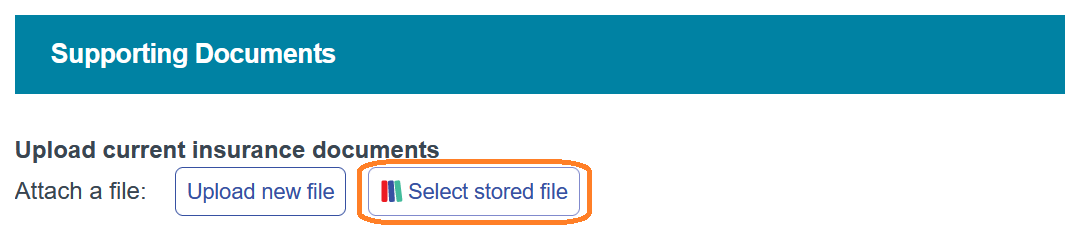
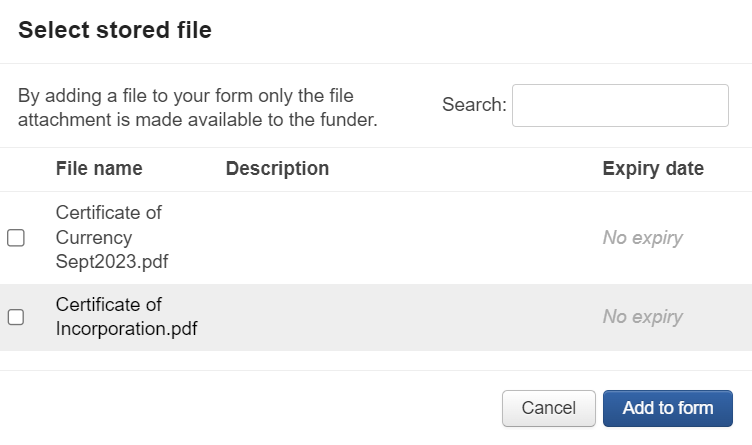
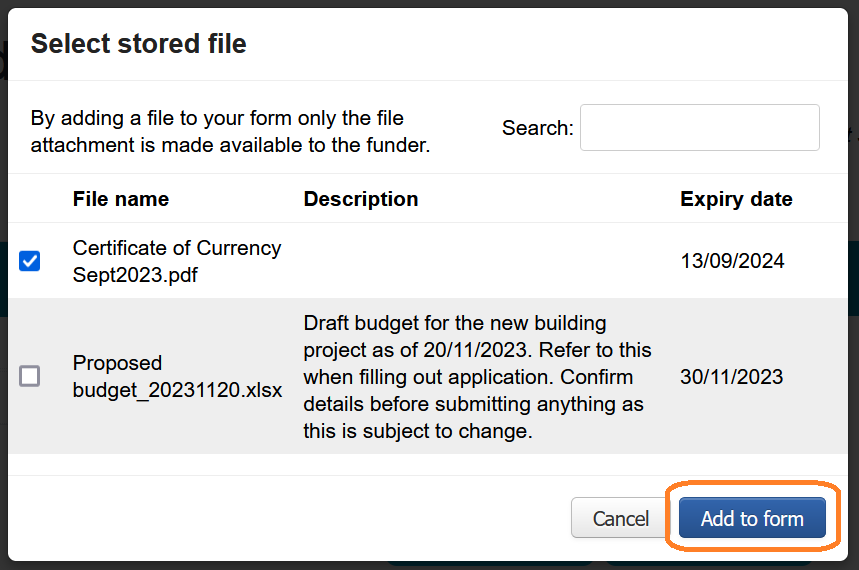
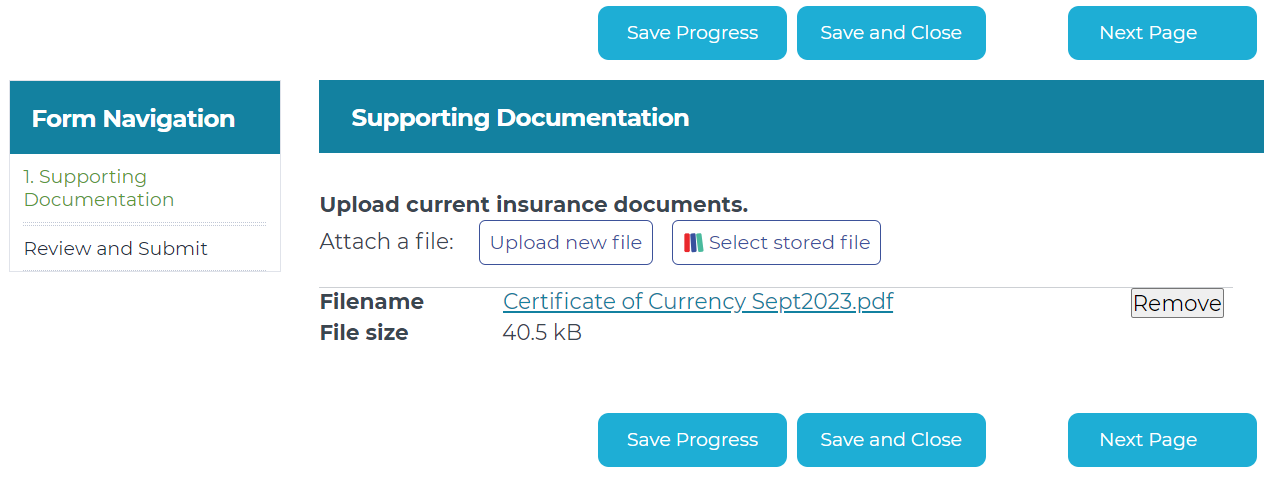
To upload a file, while in the My Profile tab, Select the Files tab. Then, select the Add File button: Select the file you would like to upload to SmartyFile from your device's file browser by selecting Browse: You can add an optional description and expiry date: To upload the file, select the Add button. Once files have been uploaded into SmartyFile, you will have them as an option when filling out a form from funders powered by SmartyGrants. To do this, when filling out a form, select the Select stored file button. Select the file you would like to upload from the available options by selecting the check box to the left of the file name. You can search for a file by file name using the Search field in the top right: If the file you are looking for is not shown, please confirm that it has been uploaded correctly, and the expiry date (if set) has not passed. Once you have selected the file you wish to upload into the form, select Add to form: Once the button has been selected, the file will have been uploaded: Note: When completing a form that is assigned to an organisation, you will only be able to select files stored within that organisation. If your application is not assigned to an organisation, only your personal stored files will be available.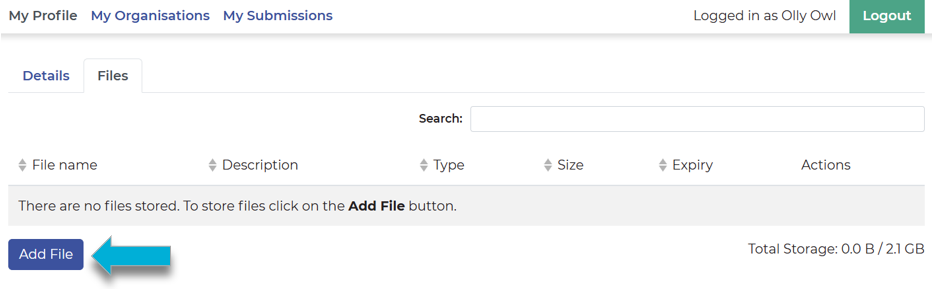

My Organisations
The My Organisations page will allow you to select which organisation profile that you’d like to view the details of, as well as providing you the option to join or create a new organisation via the New Organisation button.
If you have requested to join an organisation, this will appear in this screen. Otherwise, you will just see a list of organisations that you are already a member of.
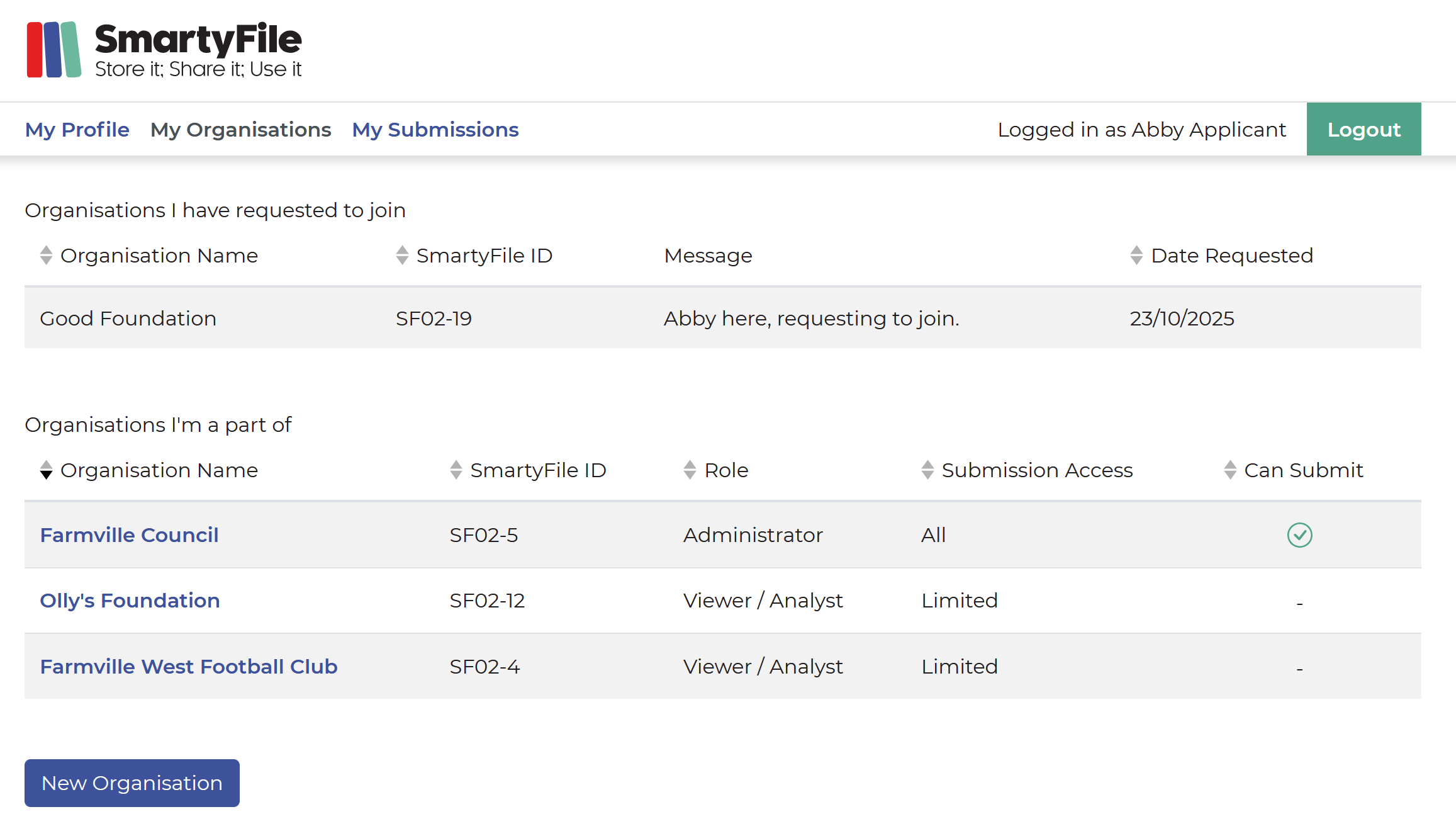
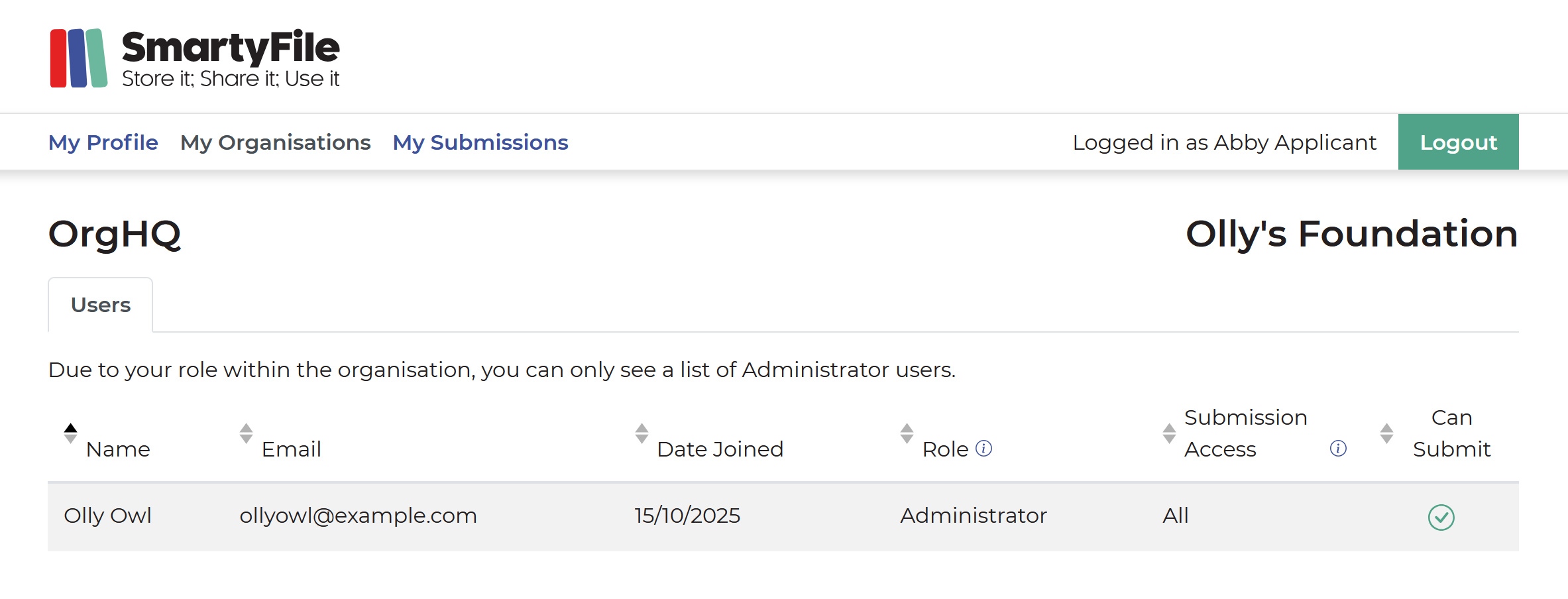
Clicking on any organisation name will take you to the OrgHQ page for that organisation. However, unless you are an Administrator user, this page will only show you a list of Administrators, like in the example below:
My Submissions
From My Submissions, you can search, sort, archive, delete drafts, assign submissions to an organisation, and access forms you have been asked to complete as part of a submission. To access forms, select either the Submission ID number, or the blue down arrow on the right-hand side of the submission.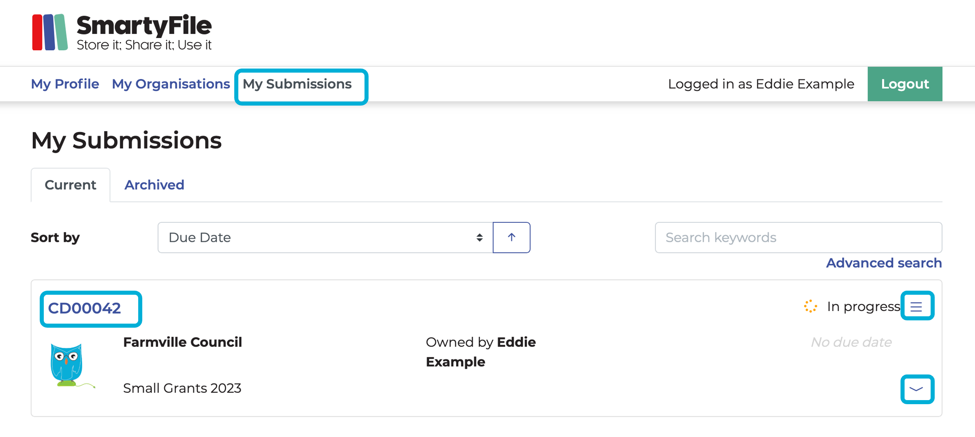
Search
On the My Submissions page, you can search through your submissions. You can type keywords or a query into the search bar, or use the Advanced search function to search by a specific field type (i.e by round, due date, and more). Running a query allows you to search for partial words or wildcards in the search results. See Search for more information.
Sort by
On the My Submissions page, the default sort order of submissions is: Incomplete (overdue submissions): sorted oldest to newest. In progress with due date: sorted oldest to newest. In progress without due date. Submitted. You have the ability to toggle your sort order and sort your submissions by: Funder. Application No (Submission ID). Round. Project Title. Due Date. Submitted Date. Status.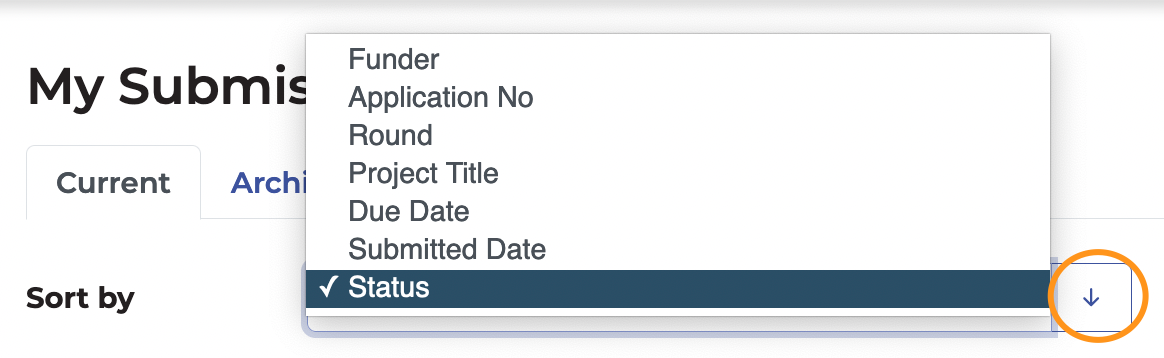
Change owner
Using SmartyFile, it is possible to change the owner of an existing submission to another member within the same SmartyFile organisation that the submission has been assigned to.
Administrators have access to change owners on all applications that belong to their organisation. The current application owner also has access to change the owner. An application that is assigned to an organisation can only have the owner changed to administrators or author-level users of the organisation. Who has access to change owner?
Who can become an owner?
In summary:
You can change the owner if:
The application has been assigned to the organisation, and
You are either the existing owner of the application or an Administrator.
See the steps here.
You cannot change the owner if:
The application has been assigned to the organisation, but
You are not the current owner and not an Administrator,
Contact your SmartyFile Administrator(s) for assistance.
You cannot change the owner if the application has not been assigned to a SmartyFile organisation. Contact the funder directly for assistance.
Share a submission
Submissions can only be shared with other users of the organisation that it is assigned to. Administrators, existing application owners, and Authors with access to the submission have the ability to share it with organisation members who have been given the appropriate permissions.
In summary:
You can share a submission if:
You are the existing owner of the application, or
You are an Author with existing access to the application, or
You are an Administrator.
See the steps here.
You cannot share a submission if:
The application is assigned to the organisation, but
You are not the current owner, and not an Author who already has access.
You will need to contact your SmartyFile administrator(s) for assistance.
You cannot share a submission if the application is not assigned to a SmartyFile organisation. You can only share an application that has been assigned first. Steps can be found here.